 beesolo.
Let clients see your work and book with you.
A public booking page for your barber or salon business. Show your work, services, prices, and location, with a booking link connected to your availability.
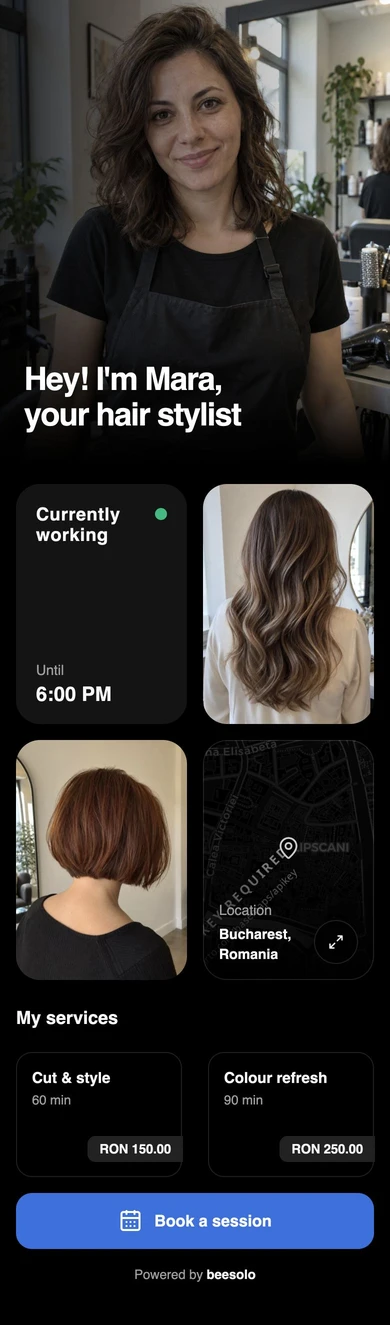
Give clients the details they need before they book
Someone finding you for the first time can see the work you do, check the price, and start booking from the same page.
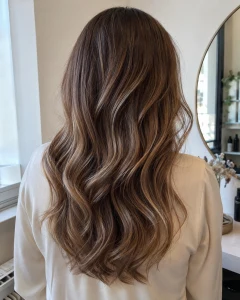
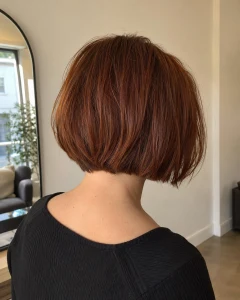
Examples of your work
Use your photo gallery to show the cuts, colours, and finishes you offer.
Prices and appointment lengths
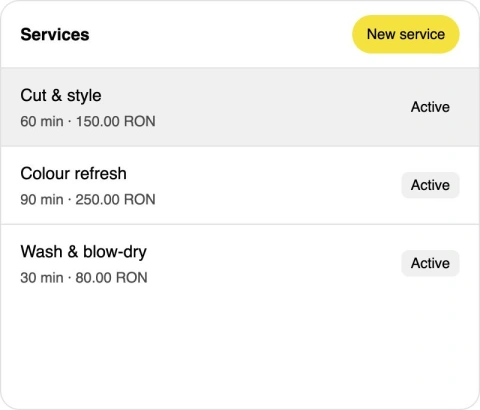
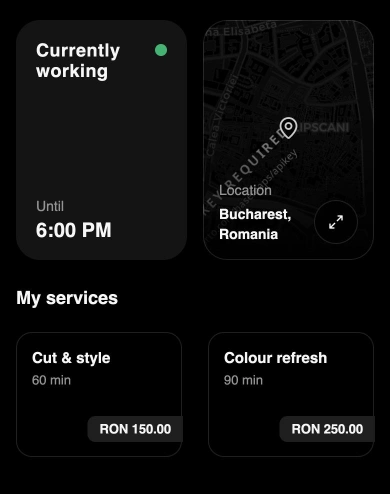
Give each service a name, price, and duration that helps clients choose.
Where to find you
Keep the location with your business details so a new client can plan the visit.
A way to book
The booking button opens the flow for choosing a service and an available time.
Introduce yourself before the first visit
A new client wants to know who will be doing their hair. Put your photo, name, and introduction at the top of your page. Tell them what you do and the kind of appointment they can book with you.
Create your booking page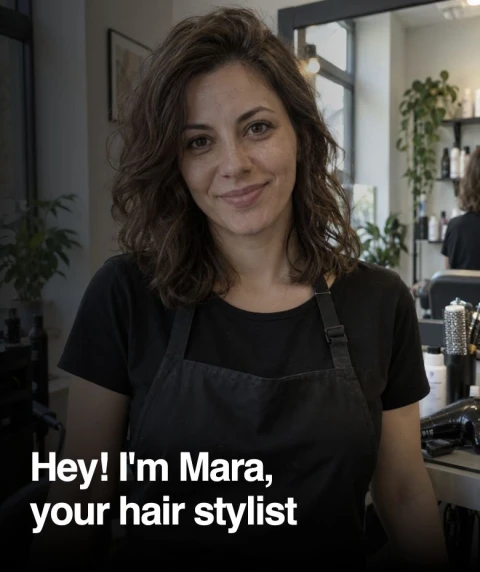
Let your work help them decide
Show the cuts, colours, and finishes you want to be booked for. Your gallery gives someone a closer look before they commit to an appointment, with the booking button on the same page.
- Add up to eight photos of your work.
- Choose the photo that introduces your business.
A service menu clients can understand
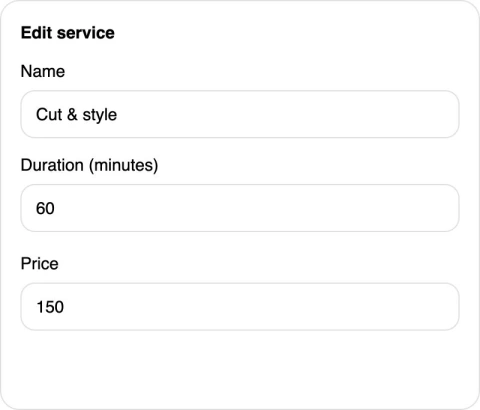
Name each appointment, explain what it includes, and keep its price and duration together. A client comparing a cut with a colour refresh can see the difference before entering the booking flow.
Turn interest into an available appointment
The Book a session button opens online booking. Clients choose their service and see times that fit its duration and your schedule. They can take the next step while your work is still fresh in their mind.
Create your booking page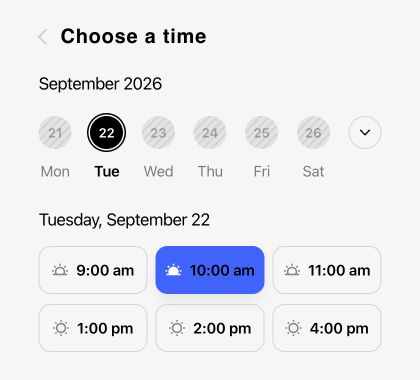
From your page to a confirmed visit
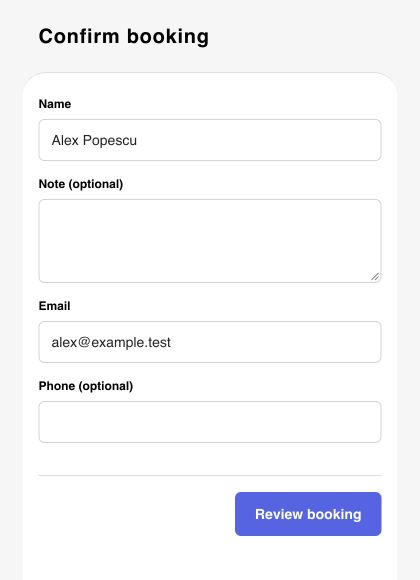
Clients pick a time, enter their details, and review the appointment before confirming. They finish with a record of the service, date, time, and price. No app download or client account is needed.
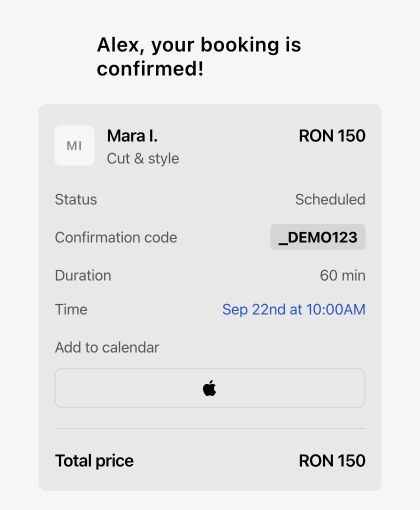
Help a new client find your chair
Keep your location on the public page so someone can plan the journey before booking. Their appointment page also includes your address and a directions link, ready to check on the day of the visit.
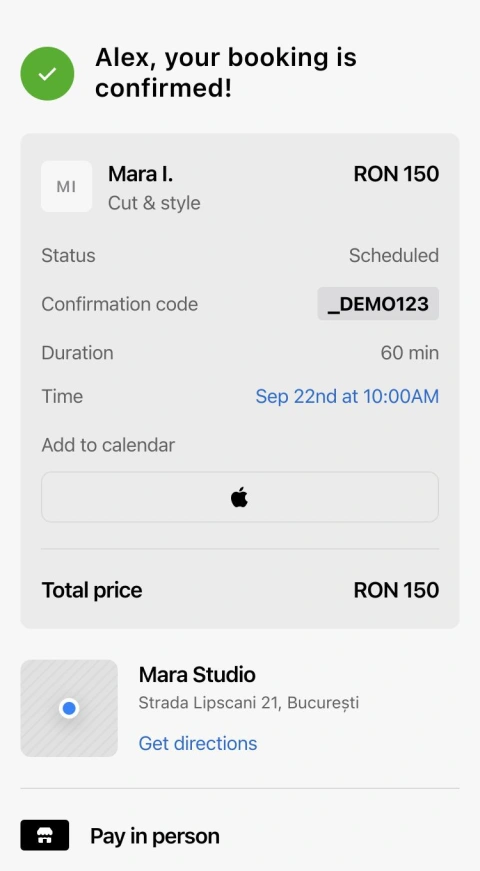
Keep the page current as your services change
When a service takes longer or your price changes, update it in the Merchant App. Your public link remains the destination clients already know. Use service descriptions for appointment details that a photo alone cannot explain.
Create your booking pageGive every profile one place to book
Put your beesolo link in your Instagram bio, on your website, or in a reply to a client. Whether someone finds a recent haircut or a saved post, they reach your current page and can begin booking there.
Get your page ready for its first booking
Start with what a new client needs to decide. You can refine the photos and wording as your business changes.
Create your booking pageIntroduce your business
Add your public name, a useful introduction, location, and a featured photo. Choose gallery images that represent the work you want clients to book.
Connect services and hours
Give each service an accurate price and duration, then set your working hours and booking limits. These determine what happens after a client selects Book.
Check it on a phone
Open your public page as a visitor. Read the service names, check the address, and enter the booking flow before putting the link in your bio or website.
Questions before you start
What your page includes, where to share it, and how clients book.
It is a public page where clients can find your business, compare services, and book an available time. Your service menu connects directly to your working schedule. Instead of sending people from a profile to a message thread, you can give them one link to complete their booking.
Make your booking link easier to use
Prepare the page clients land on, then give them a clear way to reach it.
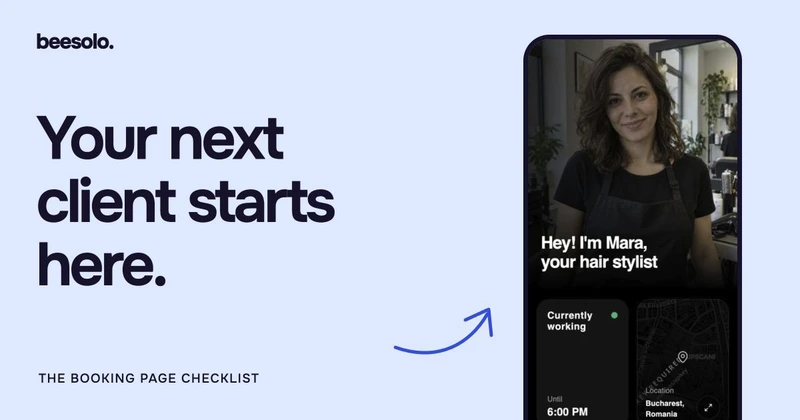
· 5 min read
Get clients · beesolo
Salon booking page checklist: what clients need to see
Review your booking page through the eyes of a new client. Fix unclear services, missing location details, and dead ends before sending more people to it.
· 5 min read
Get clients · beesolo
Instagram booking links for barbers and solo salons
A haircut photo gets someone interested. Help them choose the right appointment with a clear bio, useful captions, and one booking link.
Your next booking starts here.
Your work, services, and available times. One link clients can book from.