 beesolo.
Let clients book without waiting for a reply.
Online scheduling lets clients choose a service, select an available time, and confirm their visit in their browser. beesolo checks your schedule as they book.
Follow a client through booking
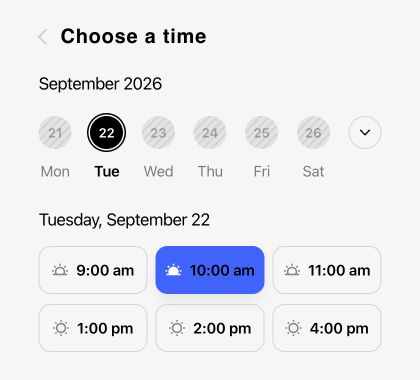
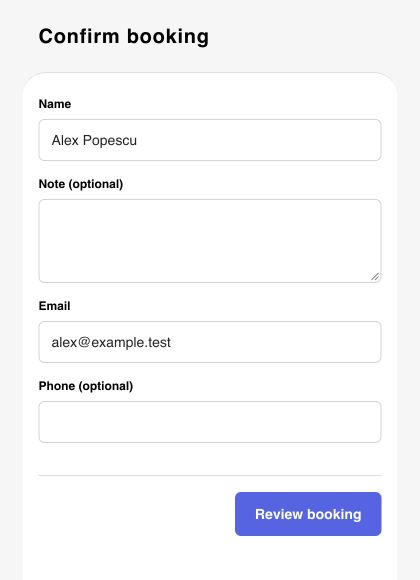
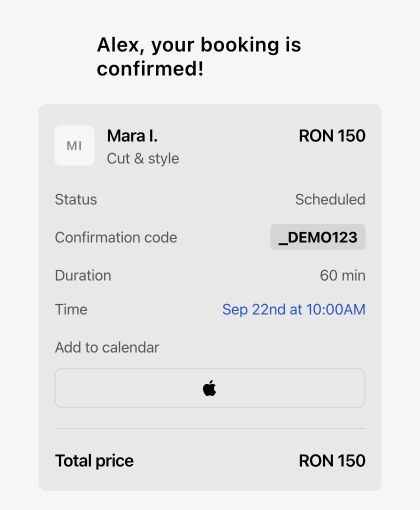
After choosing a service, the client selects a time, enters their details, and confirms the visit. These screens follow the same Cut & style appointment.
Available times come from your schedule
Working hours, time off, existing appointments, and booking limits determine what clients can select.
The selected time is held temporarily
A hold protects the opening while the client finishes. An expired hold can release the time for someone else.
Clients book in their browser
They enter their contact details and review the appointment without creating a client account or downloading an app.
Confirmation completes the booking
Selecting a time starts the process. The appointment is booked when confirmation completes.
Start with the appointment they actually need
Give clients service names they recognize, with a price and duration beside each choice. A blow-dry and a colour appointment need different amounts of time. The selected service determines which openings can be offered.
Set up online booking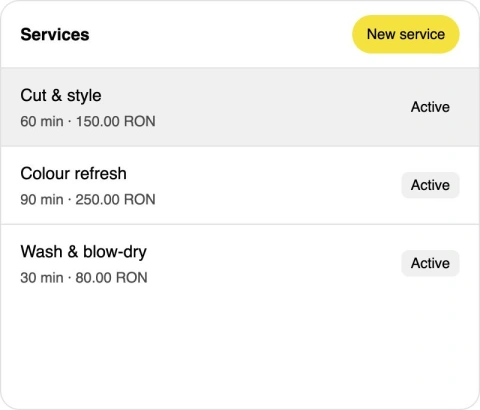
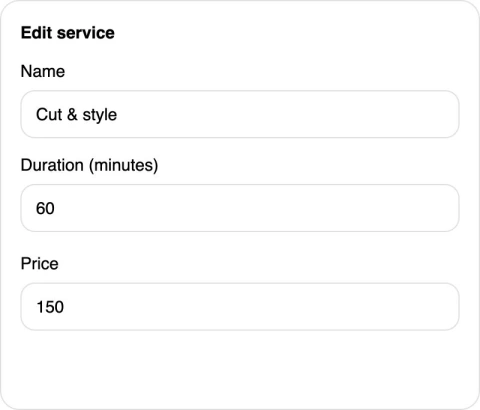
Show times that fit the whole service
An empty start time is not enough. beesolo checks that the full appointment fits your working hours without overlapping an existing booking or an active reservation. A 30-minute gap cannot hold a 90-minute colour refresh.
Keep your booking limits in place
Choose how much notice you need and how far ahead clients can book. Someone opening your link in the evening can choose a valid future appointment without waiting for you to answer a message.
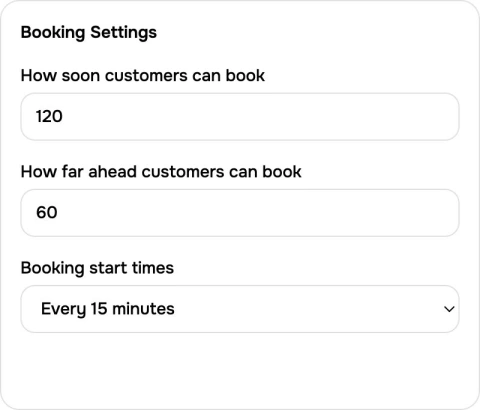
Give clients time to finish their booking
After a client selects an opening, a temporary reservation protects it while they complete the next steps. If they leave without finishing and the reservation expires, the opening can become available again.
Set up online bookingLet clients finish in their browser
A client enters their name and contact details, adds an optional appointment note, and reviews the visit. Confirmation completes the booking and gives them the details they need to return.
Keep the visit details together
The confirmation contains the service, time, price, and location. Clients can add the appointment to their calendar and return through their secure appointment link when they need to check it.
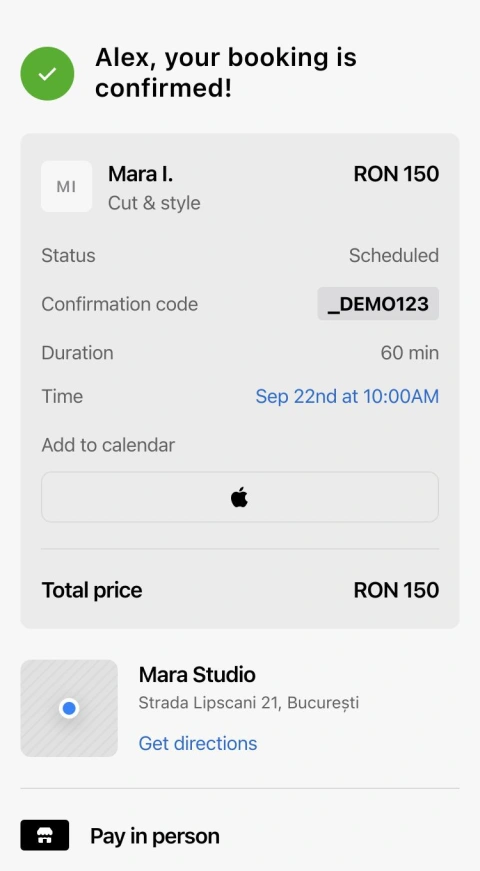
Let clients cancel or choose a new time
Clients can verify their booking email through their secure appointment link to cancel or reschedule a single appointment online up to one hour before the start. They choose an available time and confirm the change, keeping the same services and price. For service changes or help after the cutoff, they contact you.
Set up online bookingSet up the journey from service to confirmation
Your service menu and calendar supply the choices. The client completes the booking from your public link.
Set up online bookingStart with accurate services
List the appointments you offer and the time each one takes. A 90-minute colour refresh needs a longer opening than a 30-minute blow-dry.
Set hours and notice
Choose when you work, add time off, and set the minimum notice and advance-booking window that fit your day.
Review the client experience
Open the booking flow from your public page. Check the services and available times, and understand the review and confirmation steps before sharing the link.
Questions before you start
How available times, temporary holds, and confirmation work.
Clients open booking from your public page and choose a service. beesolo checks your schedule and shows times that fit the service duration. The client selects an opening, enters their details, and confirms the appointment without needing to coordinate a time by message.
Move everyday booking out of your messages
Plan the move to online booking and write service choices clients can understand.

· 3 min read
Run your calendar · beesolo
Switch from WhatsApp and a diary to online booking
A practical changeover plan for a solo barber or hair stylist. Protect existing appointments, set up your services, and give clients one clear way to book.

· 6 min read
Templates & examples · beesolo
How to write a salon service menu clients understand
Name services in client language, explain what the price covers, and separate maintenance from bigger changes. Includes worked haircut and colour descriptions.
Your next booking starts here.
Your work, services, and available times. One link clients can book from.