 beesolo.
Make your booking page recognizable as yours.
Use your business details and photos to introduce your work. Choose the featured photo, add gallery images, and give services names and descriptions your clients understand.

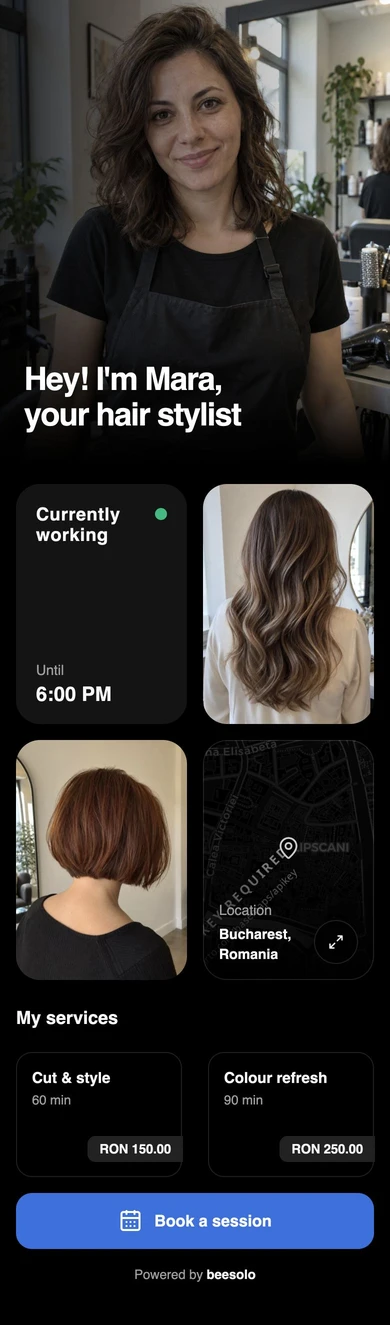

Introduce the person and the work
The featured photo appears at the top of your public page. Gallery photos let clients see the work you offer before they choose an appointment.
A featured photo
Choose the image that introduces your business at the top of the page.
A gallery of your work
Show examples that help clients decide whether your services suit them.
Recognizable service names
Use the names clients know, with descriptions that explain what is included.
A structured booking layout
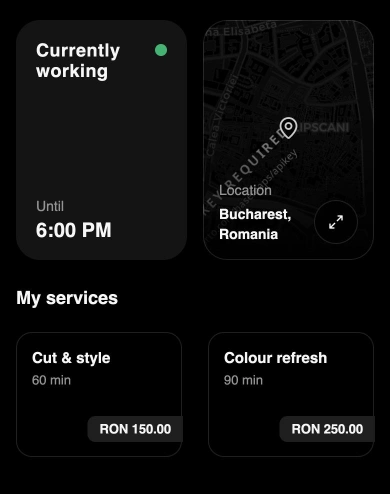
beesolo supplies the page layout, keeping the service menu and booking action in place.
Put a familiar face at the top
Choose a featured photo that introduces your business. Pair it with your name and a short introduction so someone arriving from a recommendation knows who they will be booking with.
Create your booking page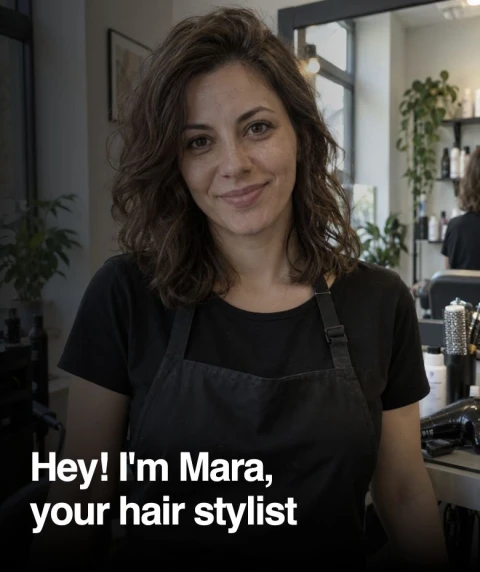
Show the work you want to be booked for
Choose recent examples of your cuts, colours, and finishes. Open Settings, then Public profile to add up to eight public photos and select the featured image. A client can get a feel for your work before choosing an appointment.
Use service names your clients recognize
Write the names and descriptions in your own words. Explain what is included when two appointments sound similar, and give clients enough detail to choose without needing to ask you first.
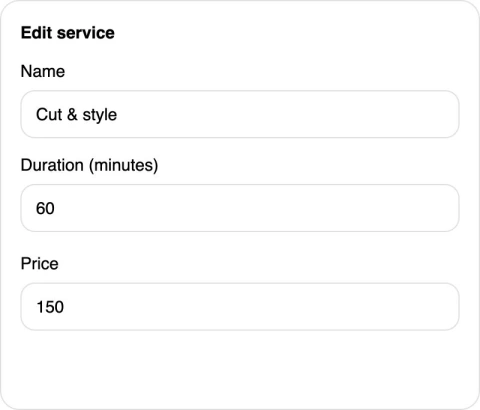
Keep the offer as clear as the photos
Use the gallery to show the result and the service menu to explain the appointment. Prices and durations belong with the service, where you can update them without replacing a photo of your work.
Create your booking page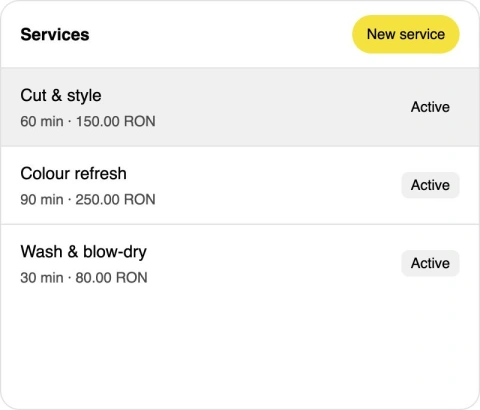
Keep booking familiar, even for a new client
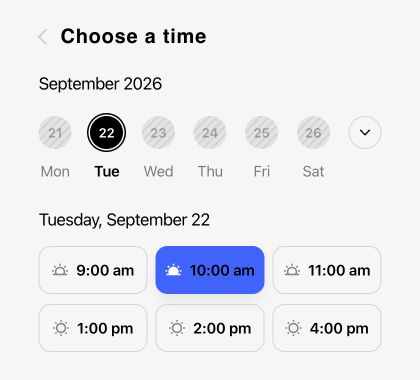
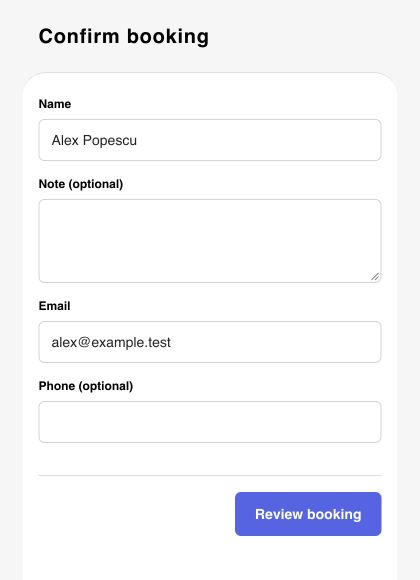
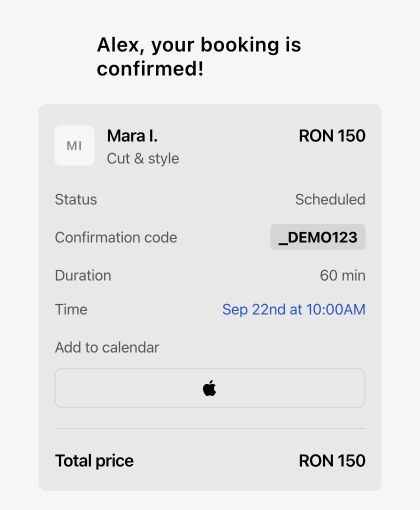
Your photos and introduction make the page recognizable. beesolo supplies the calendar, contact form, and confirmation so you can focus on your presentation without designing each booking step.
Check the page before you share it
Open your public page on a phone. Check the featured photo, read the service descriptions, and make sure the location is correct. Follow the booking button to see the same choices your next client will see.
Refresh your work without replacing your link
Update your photos when you have work you want to show. Keep service details current as your offer changes. Your social profiles and website can continue pointing clients to the same public page.
Create your booking pageChoose the details that make the page yours
Start with a clear introduction and a small, relevant gallery. Review the whole page on a phone as you update it.
Create your booking pagePick a useful featured photo
Choose an image that introduces you or your business clearly. Check the crop in the actual public page, especially on a phone.
Build a focused gallery
Open Settings, then Public profile and find Public photos. Add up to eight photos, using recent work with consistent lighting and useful image descriptions.
Review the words beside the images
Make sure the public details and service descriptions match the work shown. Check names, prices, and durations before sharing the page.
Questions before you start
Public photos, page layout, and the settings clients can see.
Add public photos, choose the featured image, and edit service names and descriptions. Your public page also presents your business details and location. beesolo provides the page structure rather than a blank website editor.
Choose better photos and a clearer introduction
Practical photography and writing advice for the places clients first find you.
· 3 min read
Get clients · beesolo
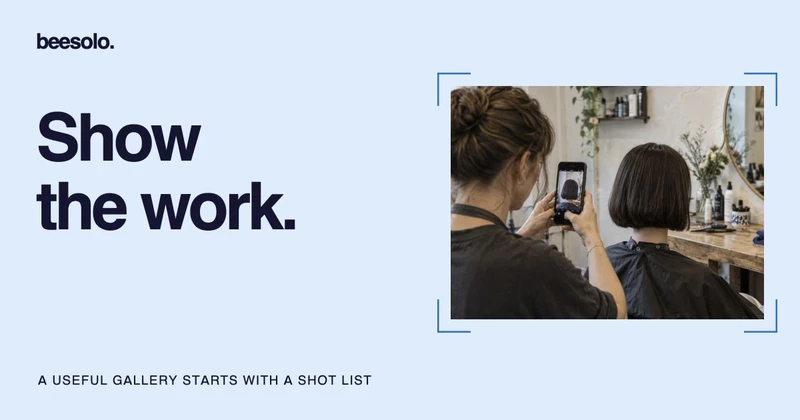
How to photograph haircuts for your booking gallery
Build a useful gallery with a repeatable shot list, clear service captions, and photographs that show the work honestly.
· 3 min read
Templates & examples · beesolo
Instagram bio examples for barbers and hair stylists
Eight short bios you can adapt, with character counts and booking-link labels. Tell clients what you do, where you work, and what to do next.
Your next booking starts here.
Your work, services, and available times. One link clients can book from.