 beesolo.
Switch from WhatsApp and a diary to online booking
A practical changeover plan for a solo barber or hair stylist. Protect existing appointments, set up your services, and give clients one clear way to book.
By beesolo · Published on · Updated · 3 min read

On this page
The risky part of moving online is the afternoon when your diary, messages, and booking page all disagree. Avoid that by choosing a changeover time and deciding which calendar you will check before accepting any new appointment.
You can keep talking to clients on WhatsApp. What needs to change is where an agreed appointment becomes a reserved period of your day.
Start with the appointments you already promised
Read forward through your paper diary and recent messages, as far as you have accepted bookings. Include informal promises such as "same time next month". Mark anything that still needs a date or duration confirmed.
Use the changeover checklist to record what you have checked. Before opening online availability, protect every existing commitment in the new schedule. Use an appointment entry where supported, or block the occupied time and retain the original client details securely. A time block alone is not a customer booking or a confirmation message.
Do not enter a second public booking on a client's behalf just to move a line from your diary. You could create a duplicate appointment or send unexpected messages. This guide describes a manual changeover, not an automatic WhatsApp or diary import.
Set up one ordinary working week
Begin with the services clients already ask for. For each one, write a recognisable name, what is included, the price, and the full time you need before accepting the next client. A short, accurate service menu is easier for clients to scan than twenty overlapping choices.
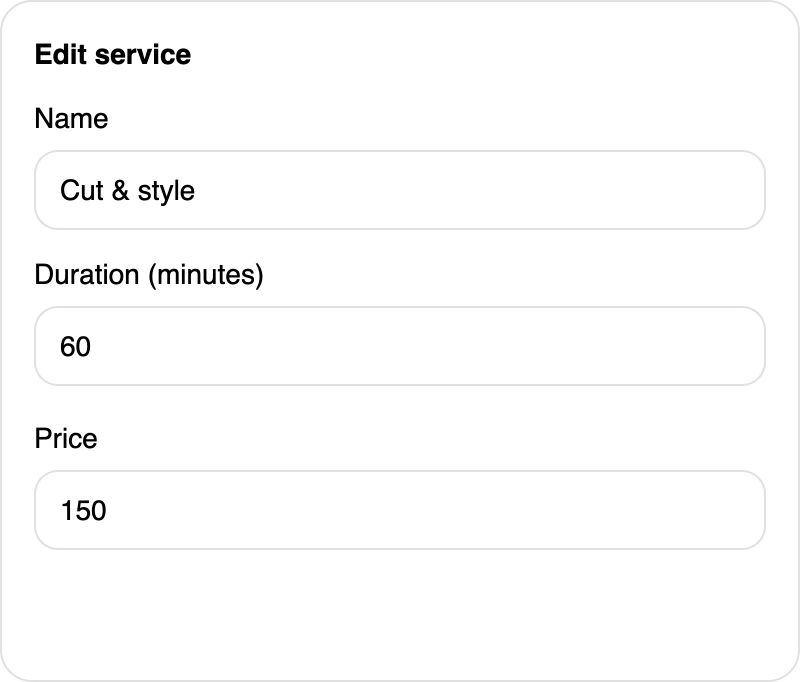
Set your regular availability, then add exceptions such as a day away or a late start. Check the timezone. Keep lunch and preparation time out of the bookable period if you cannot work during them.
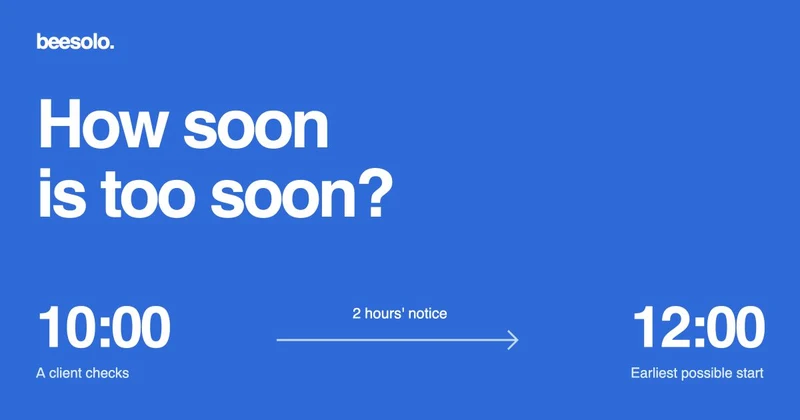
Next, choose how much warning you need for a new appointment. Someone who travels to the studio may need more minimum notice than someone already at the chair. Setting a shorter interval between offered starts does not add a break after each appointment.
Check the journey before announcing it
Open your public page on a phone as a client would. Work through this sequence with a short service, then a longer one:
- Read the name, location, service description, duration, and price.
- Inspect the available times around an existing commitment. Nothing should overlap it.
- Check the last possible start of the day. The whole service must fit.
- In a demo environment, complete the details step and inspect the confirmation. If testing your live business, use your own details and remove the test appointment afterwards.
- Confirm how a client can change an appointment and how to contact you when they need help.
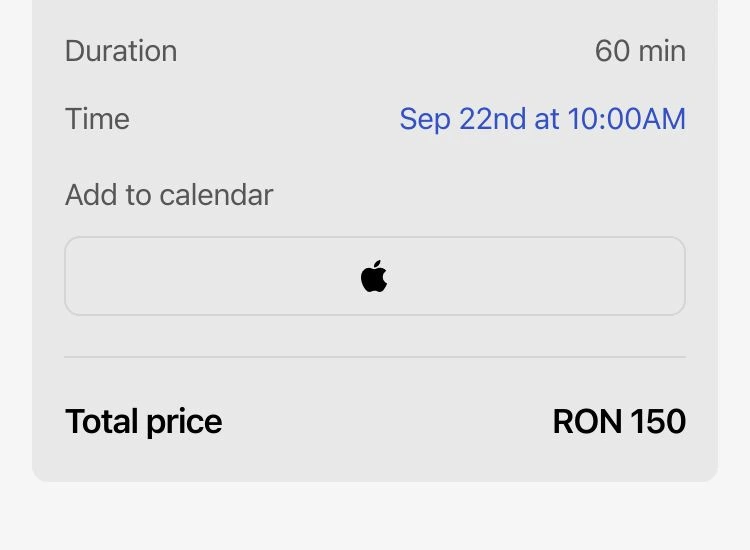
Keep a note of any confusing wording. Correct the page before asking clients to use it. The booking-page checklist covers the full review.
Announce what changes and what stays booked
Give existing clients reassurance before asking them to learn a new habit. Replace every bracket before sending this example yourself:
You can now see my services and book an appointment at [public booking link]. Your existing appointment on [date] at [time] is still booked. For future visits, choose your service and time through the link. If you are unsure which service to select, message me here and I will help.
Put the same public link in your Instagram profile and Google Business Profile. Never share the address of your owner dashboard or an individual client's confirmation.
For someone who continues to ask for times by message:
My available times are at [public booking link]. Choose [service name] to see appointments that fit. If none work for you, tell me which days you can manage and I will check.
Keep one calendar authoritative
During the first week, check the new calendar before accepting any request by phone or message. Record or protect the time there immediately. A second diary can be a temporary checking aid, but it should not independently accept appointments.
At the end of each day, compare the next day's commitments with any messages still awaiting a reply. Look for duplicate entries, unexplained blocks, and appointments whose duration is too short. Resolve the cause rather than leaving yourself a permanent mental reminder.
The changeover is complete when every accepted visit is protected and every new request goes through the same availability check.
Explore the beesolo booking page or browse more practical booking guides.