 beesolo.
Add your salon booking link to Google Business Profile
Connect your Google listing to a page where clients can book. Follow the current link settings, check the destination, and troubleshoot a missing or rejected link.
By beesolo · Published on · 3 min read
On this page
A person finds your salon on Google and wants an appointment. Give them a link that leads to your services and available times, with enough information to choose the right visit.
This guide covers adding your own booking URL. It does not connect beesolo to Reserve with Google or promise a particular button design. Google controls how links appear.
Get the destination ready first
Use the public page for the business and location shown on the listing. It should let someone complete a booking. Google requires a verified business and a dedicated destination that supports the advertised action. Its rules exclude messaging, social-media, app-store, and shortened links from this use. Availability also depends on the business and region. Google's business-link requirements.
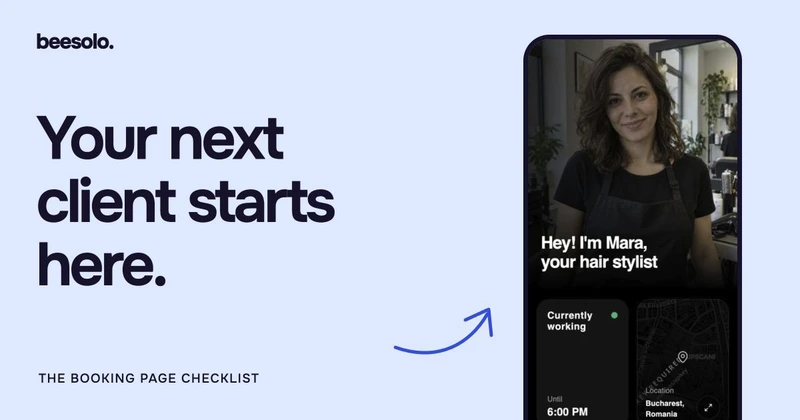
Check your destination in a private browser window before opening the profile editor. Does it show the same business name and address? Can a stranger understand the services? Is at least one intended future time available? Fix those details using the booking-page checklist.
Copy the full public URL, including https://. Do not use the Merchant App address or a private appointment-management link.
Add the link in Google Search or Maps
The following labels follow Google's help documentation, checked on September 19, 2026. This is a documentation-based walkthrough, not a capture of a signed-in business account.
- Open the Business Profile you manage.
- In Google Search, select Booking. In Maps, open Edit profile and select the relevant transaction type.
- Choose Add link, or Add another link if one is already present.
- Paste your booking URL and save.
If you have several links, Google's Set preferred link option lets you choose which one is marked as business preferred. Check the public result after saving. Google's link-management instructions.
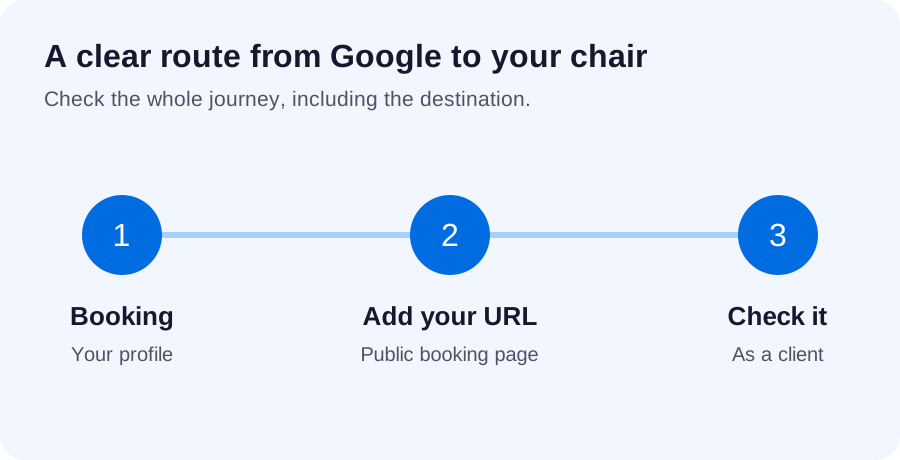
Test what a new client sees
Leave the management view and find the public listing. Start from the actual link on that listing, not from a URL already open on your phone.
- Confirm it opens the correct professional and location.
- Choose a service and check its price and duration.
- Look for a time you genuinely intend to offer.
- Follow through to the details step. Complete a test booking only when you can safely manage the resulting reservation.
Repeat the link check after changing your public address or moving premises. A correct profile editor is not enough if the old URL still appears elsewhere.
If the link is missing or rejected
Scroll sideways to see the full table.
| What you see | What to check first |
|---|---|
| No booking-link control | Check the profile's verification, business category, and regional eligibility against Google's requirements. Do not change your category to one that misrepresents your business. |
| An invalid-link message | Paste the address again from the working public page. Look for spaces, a duplicated protocol, or backslashes. |
| The page opens but booking cannot finish | Check publication, active services, and future availability. Do not substitute a social profile as the booking destination. |
| The new URL is saved but the listing looks unchanged | Check whether the edit is still awaiting approval before repeatedly submitting it. |
These checks follow Google's eligibility and link-validation guidance. If the problem persists, keep the exact error and a screenshot for Google Business Profile support.
Make the arrival match the listing
Once the link works, compare the map pin, written address, entrance instructions, and business name. A stylist renting a chair may need to explain that the sign outside belongs to the host salon.
Use the first-visit message for the last few metres of the journey: the correct door, floor, and contact number. A working booking link gets the appointment into the calendar; clear arrival details help the client reach the chair.
Explore the beesolo booking page or browse more practical booking guides.